Quick Start
Six short pages that take you from opening uFTi to your first person, with its source and a copy.
This takes about ten minutes. Each page has a few steps. Do them in order.
Oughtibridge Ltd
© 2026 Oughtibridge Ltd
This publication is available at https://docs.ufti.com/android-phone/Alpha-1/
Six short pages that take you from opening uFTi to your first person, with its source and a copy.
This takes about ten minutes. Each page has a few steps. Do them in order.
Open uFTi for the first time.
A workspace is one family tree.
The Workspaces screen opens.
This is where your trees live. You may see some sample workspaces already. You do not need them.
Next: Add your first person.
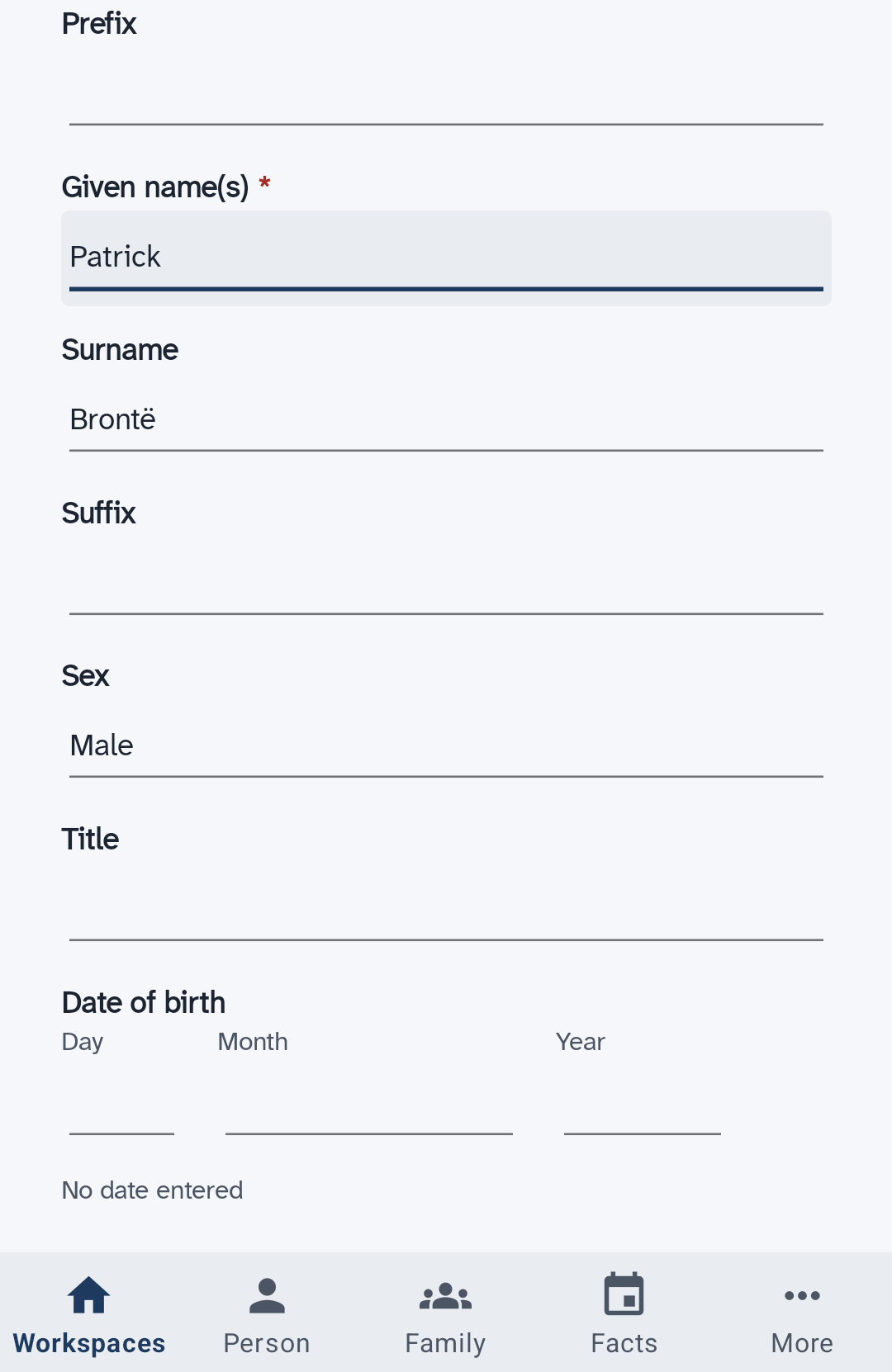
Make your own workspace and add yourself, or someone you know well.
That is your first person. uFTi saves your work as you go.
Next: Look around.
See what the five tabs and the search box do for the person you added.
Add a person first.
The bar along the bottom of the screen shows the main places. Most of them show the person you are looking at.
To go back one screen, choose the back arrow at the top left.
Next: Say where you found it.
Add a source to a fact, so you always know why you believe it.
Open the page of a person who has a birth date.
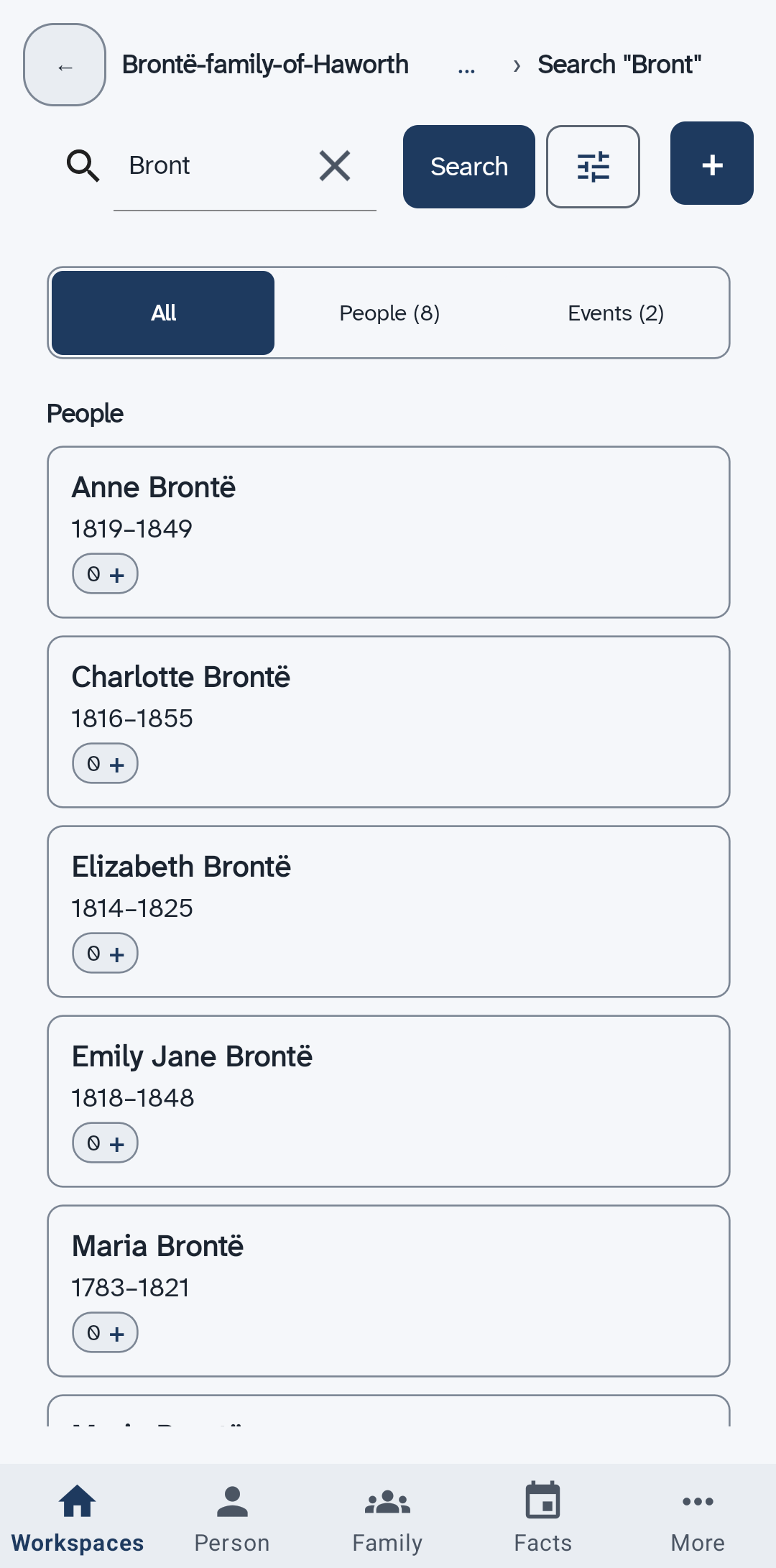
To find a person, type their name in the search box and choose Search. Then choose the card with their name.
The fact now has a source. Later, when two records disagree, this is how you will know what to believe.
Next: Keep it safe.
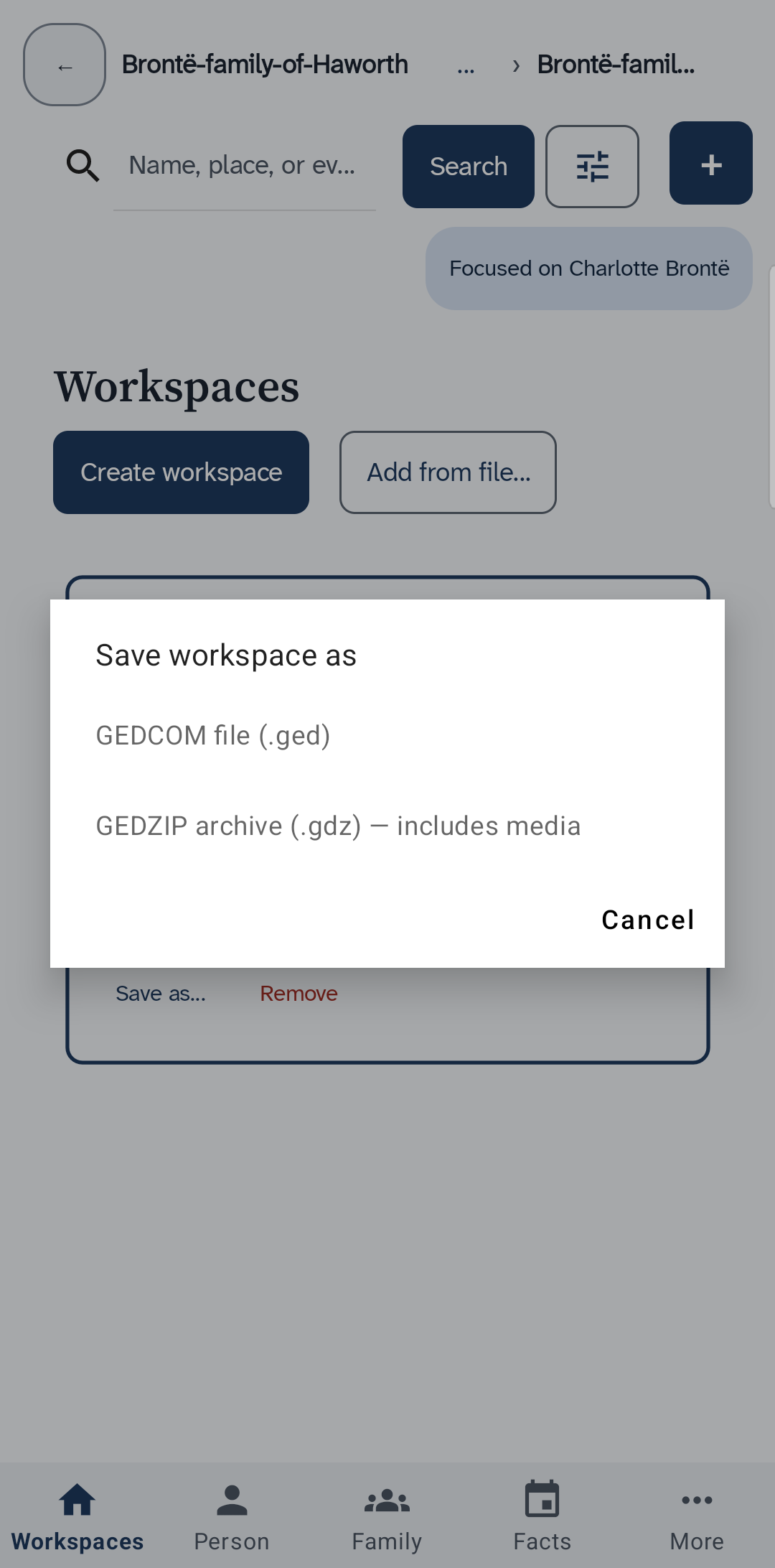
Save a copy of your tree as a file, and keep it somewhere else too.
You now have a copy. Make a new one after you add a lot. To email it, find it in the Files app. Keep a copy off your phone too.
Next: What next.
You have a tree, a person, a fact with its source and a copy, so choose where to go from here.
Well done. What do you want to do now?
The five ideas behind uFTi, in two minutes.
You can have more than one. Each shows as a card on the Workspaces screen. Make a new workspace for each tree.
Add a person for each relative. A family joins a couple. uFTi draws a tree from your families. Choose Family to see it.
A fact is something you record, such as a birth with its date. A source is where you found it. It can be a certificate, a census page, or what someone told you. A small chip beside each heading on a person's page counts the sources. Choose the chip to add one. Then you will always know why you believe a fact.
uFTi saves your work as you go. To keep a copy, choose Save as… on your workspace's card. Keep the file somewhere else too. Do it again after a big session.
Look in this guide when you are stuck. Use its search box, and type the words you would say. Practise in a workspace you make for the purpose.
What your workspace holds, why a GEDZIP file is the one to keep and send, and when a plain family tree file is better.
Your tree is more than one file. It is the family tree, its research notes, and the pictures and other files you attach. This chapter says what uFTi does with a file you open, how to keep a copy safe, and which file to send.
The short answer is the GEDZIP file. It holds your whole workspace in one file. Keep your work in a GEDZIP file, and send a GEDZIP file to anyone who also uses uFTi.
A plain family tree file is for older programs only. It leaves out your pictures and other attached files.
Your tree may have started in another program. Your family may want a copy. This chapter is for both.
A workspace is your family tree and its linked files, and a GEDZIP file holds all of them in one file.
A workspace is one family tree and everything kept with it. That is the family tree file, with its research notes, and the pictures and other files you attach to people, facts and sources.
The family tree file does not hold your pictures. It links to them, and the pictures stay in files of their own. The same is true of other attached files.
So if you send only the family tree file, the other person gets the tree and its links, but not the pictures.
A GEDZIP file puts the family tree file and all the files linked to it into one file. You send one file, and nothing is left behind. Another person who uses uFTi opens it and sees your whole workspace.
For that reason, a GEDZIP file is the one to keep and the one to share between copies of uFTi.
A plain family tree file holds the people, families, facts, sources and research notes. It does not hold the pictures or other attached files.
When you save one, uFTi asks which version of GEDCOM to use. Choose GEDCOM 7, which was published in 2021 and is the one it recommends. Choose GEDCOM 5.5.1, which was published in 1999, only for an older program that cannot read GEDCOM 7.
A GEDZIP file holds a GEDCOM 7 family tree file, with the pictures and other attached files beside it.
| File | The tree and its research notes | Pictures and other attached files | Use it to |
|---|---|---|---|
| GEDZIP file | Yes | Yes | Keep your work, and share it with another copy of uFTi. |
| Plain family tree file | Yes | No | Share with another program that reads GEDCOM, or work with one. |
On a phone or tablet, uFTi works on its own copy of the file you choose, so the file you chose stays as it was.
When you choose a family tree file, uFTi gets a copy of it and keeps the copy as its own. When the file opens, uFTi says so in one line. It works on that copy, so the file you chose does not change.
The file you chose stays as it was, however much you add. That also means it does not show your new work.
The copy that uFTi works on is not a file you can pick up and send. To get your tree out, choose Save as… on the card for your tree. Then choose how to save it, and where to put the file. Choose the GEDZIP file, unless you need a plain family tree file for an older program.
The file you save is a saved copy. It stays as it was when you made it. Make a new one after you add a lot.
Send a GEDZIP copy that you saved. Which file to send says why.
Send a GEDZIP file to anyone who uses uFTi, and a plain family tree file only to an older program.
To share your tree with someone who uses uFTi, save a copy as a GEDZIP file with Save as…, and send that file. Keep it safe shows how to make one.
A GEDZIP file holds your whole workspace: the tree, its research notes, and the pictures and other attached files. It is one file, so you can send it from your phone. Nothing is left behind, so the other person sees what you see. Your workspace and its files says more.
Some older programs cannot read a GEDZIP file. For them, save a plain family tree file instead. It holds the people, families, facts, sources and research notes, but not the pictures or other attached files. If the other person needs the pictures, send them as well.
Do not send the file you chose when you opened your tree. uFTi did not change it, so it does not show your new work. The copy that uFTi works on is not a file you can send.
A saved copy stays as it was when you made it. Make a new one before you send, if you have added anything since.
Something you record about a person, such as a birth with its date and place.
A GEDCOM file that holds a whole family tree, with its people, families, facts, sources and research notes. It does not hold pictures or other attached files. You can open one, save one and send one.
The standard format for family tree files. Many family tree programs read it. GEDCOM 5.5.1 was published in 1999. It has been the common format for more than twenty years. GEDCOM 7, published in 2021, is the newer version. A version belongs to the standard, not to uFTi.
One file that holds a whole workspace. It has the family tree with its research notes, and the pictures and other files. It is the best way to save and send your work.
A family tree drawn for one person. It shows their parents above them, and their partners and children.
A copy of your tree that you save yourself, as a GEDZIP file (preferred) or a family tree file. It stays as it was when you made it.
Where you found a fact. It can be a certificate, a census page, a book, or what someone told you.
One family tree and everything kept with it. That is the family tree file with its research notes, and the pictures and other files you attach. A GEDZIP file holds all of it. You can have more than one.