BetaThis is a new service – your feedback will help us to improve it.
Keep it safe
Save a copy of your tree as a file, and keep it somewhere else too.
Procedure
Choose the Workspaces tab.
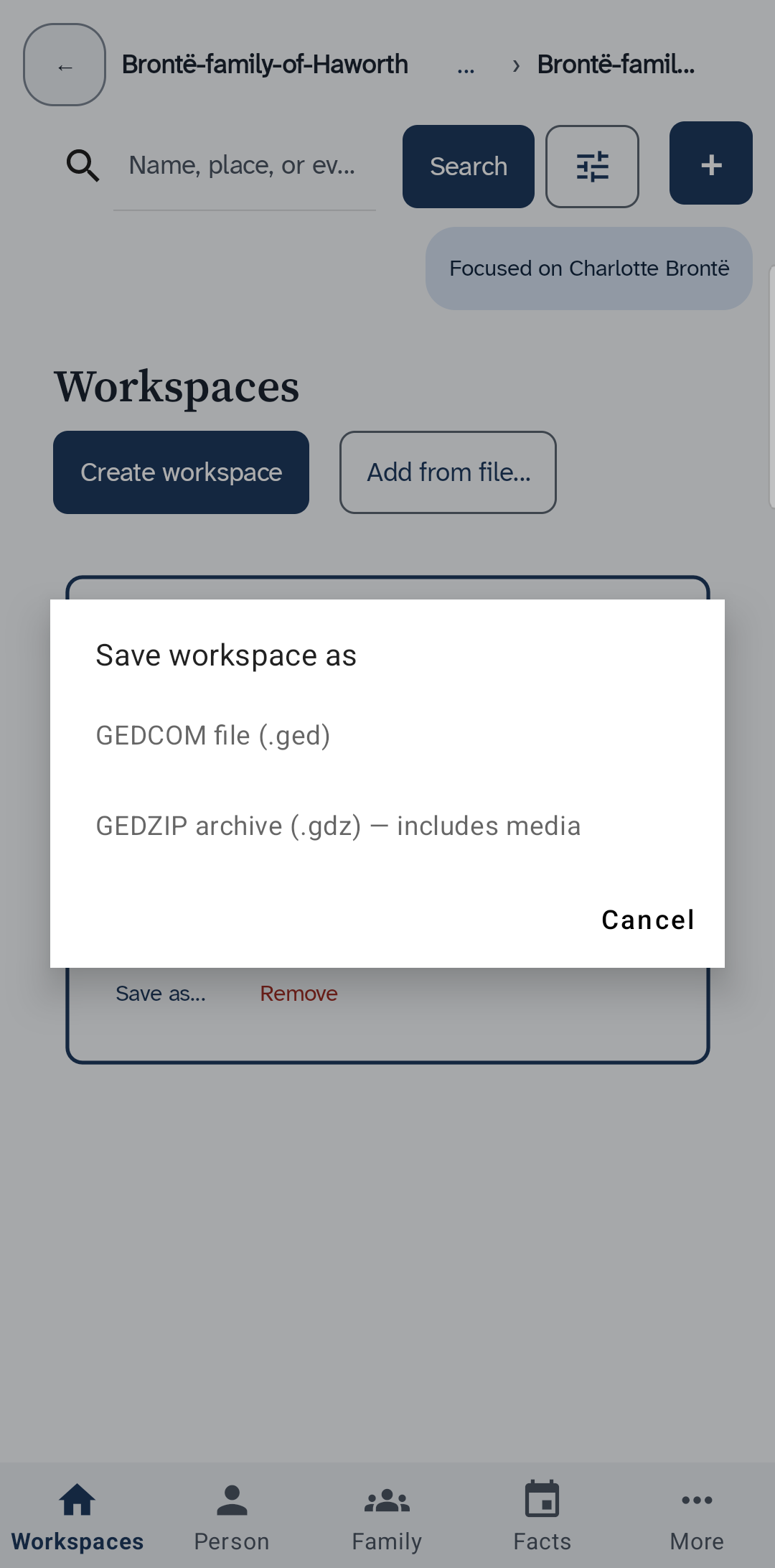
On the card for your tree, choose Save as….
A small box named Save workspace as opens.
Choose how to save your tree.
GEDZIP archive (.gdz) — includes media saves everything in one file, with its pictures. Choose this one.
GEDCOM file (.ged) saves the tree and its research notes as a family tree file, without pictures. Choose it only for a program that cannot read a GEDZIP file. If asked which version, choose GEDCOM 7 unless that program is old.
When Android asks where to put the file, choose a place you will remember, such as Downloads. Then choose Save.
Results
You now have a copy. Make a new one after you add a lot. To email it, find it in the Files app. Keep a copy off your phone too.
If you opened a file from another program, uFTi keeps its own copy. The file you chose does not change.